
In this tutorial, I’ll walk you through how to change your WordPress theme, use HTML tags in posts, apply Custom CSS, insert code blocks, add images with alt text, and install Google Analytics. These are essential skills for managing a professional WordPress website. 😊
1. How to Change Your WordPress Theme
Refer to the image below for guidance as needed.
- Log in to your WordPress Dashboard.
- Go to Appearance → Themes.
- Click Add New to browse available themes.
- Hover over a theme and click Preview to see how it looks.
- Click Activate to apply it to your site.
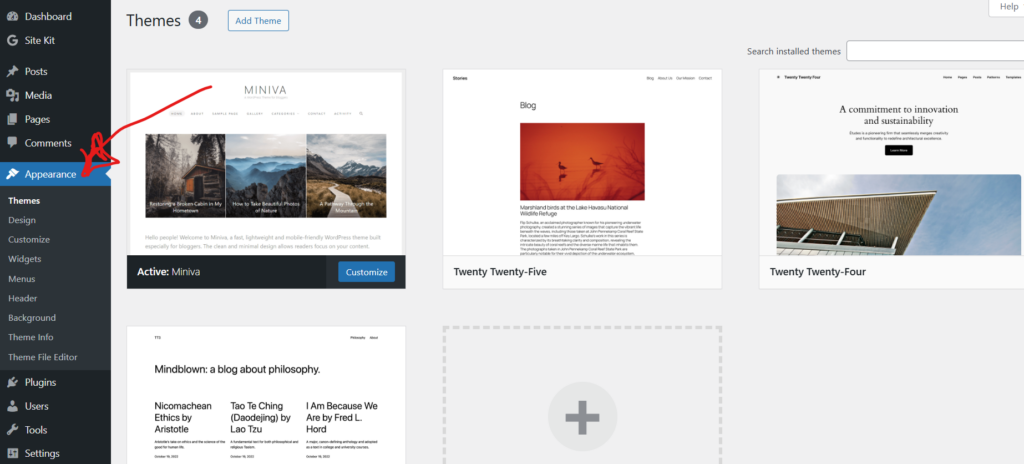
If you’re using a restricted WordPress.com plan, some custom themes are not available unless you upgrade. Otherwise self-hosted WordPress installations allow full theme customization.
2. Using HTML Tags in a Blog Post
In the WordPress Block Editor, you can add a Custom HTML Block to manually write HTML. Below is an example of basic HTML structure:
<h1>This is a Heading 1</h1>
<h2>This is a Heading 2</h2>
<p>This is a paragraph with <em>emphasized text</em>.</p>
<ul>
<li>Unordered List Item 1</li>
<li>Unordered List Item 2</li>
</ul>
<ol>
<li>Ordered List Item 1</li>
<li>Ordered List Item 2</li>
</ol>
Explanation of the Code:
<h1>: Used for the main heading of the page.
<h2>: Used for subheadings.
<p>: Used for paragraphs.
<em>: Used to emphasize text (italicized).
<ul>: Used for unordered (bulleted) lists.
<ol>: Used for ordered (numbered) lists.
What This Code Does:
<h1>and<h2>create headings.<em>emphasizes text in italics.<strong>makes text bold.<ul>creates an unordered list.
You can also create an ordered list using <ol> instead of <ul>.
3. Using Custom CSS
To add Custom CSS:
- Go to Appearance → Customize → Additional CSS
- Add your CSS code
- Click Publish
Example of Custom CSS:
body {
  background-color: #f4f4f4;
}

h1 {
  color: darkblue;
  text-align: center;
}
or you can use inline CSS in an HTML block:
<p style="color:red; font-weight:bold;">This text is styled with inline CSS.</p>
Custom CSS allows you to control colors, spacing, fonts, and layout.
4. Adding an Image with Alt Text
To insert an image:
- Click the + (Add Block) button.
- Select Image.
- Upload or choose from Media Library.
- Add Alt Text in the right sidebar.
Example image: 
Alt Text Example: “WordPress dashboard image.”
Using Alt text improves accessibility and SEO.
5. Installing Google Analytics in WordPress
To track visitors, install Google Analytics.
Step 1: Create a Google Analytics Account
Visit the Google Analytics website and create a property for your website. Copy your Tracking ID (ex. G-XXXXXXXXXX).
Step 2: Install a Plugin
- Go to Plugins → Add New.
- Search for “Google Analytics.”
- Install a plugin such as Site Kit by Google.
- Click Activate.
Step 3: Connect Your Account
- Follow the setup wizard.
- Sign in with your Google account.
- Verify your website.
- Confirm Analytics connection.
If plugin installation is disabled (some WordPress.com plans), you will need to upgrade or manually insert the tracking code in the theme header (Appearance → Theme File Editor → header.php).
Finally 🙂
By learning how to change themes, write HTML, apply CSS, insert code blocks, add images with alt text, and integrate Google Analytics, you can gain full control over your WordPress website. These skills help you design, customize, and analyze your site effectively. Cheers!!